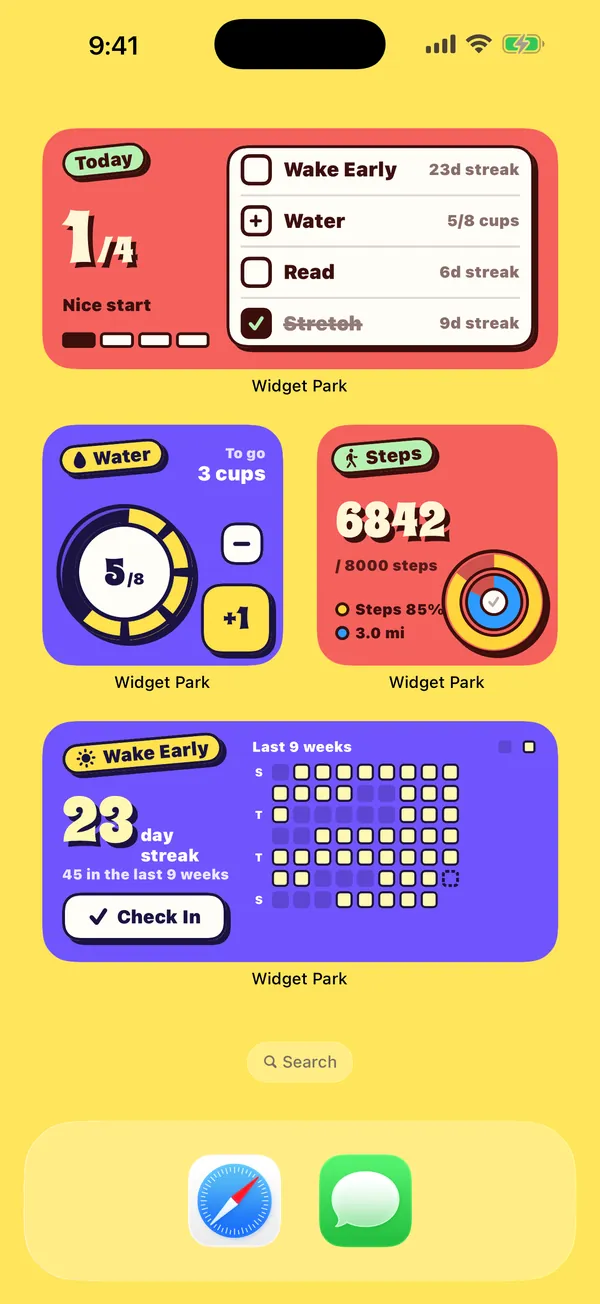

Widget Park · Clock widgets

Clock widgets for your iPhone Home Screen

Want more than the built-in clock? Widget Park’s clock widgets for iPhone include analog and digital faces, world clocks and a depth-effect photo clock, in many styles and fonts, recolored to match your Home Screen in small, medium and large.

Download on theApp Store Free download
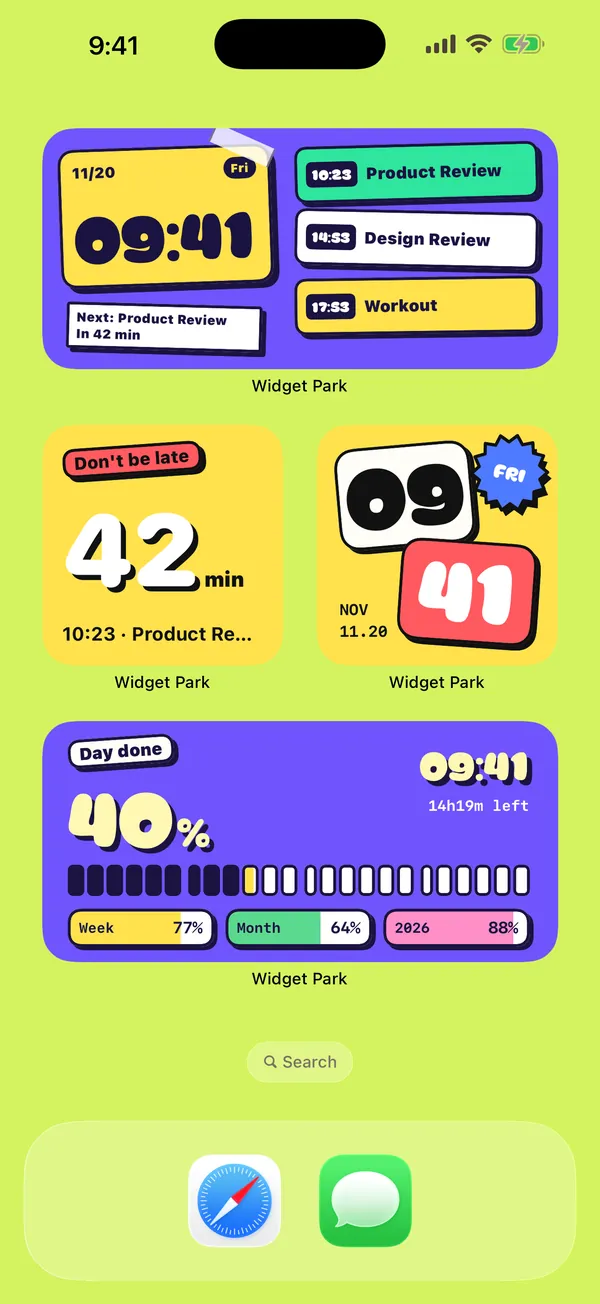
A Home Screen styled with Widget Park, with a 09:41 clock widget at the top
Face clock widget showing 09:41
Depth photo clock: the subject stands in front of the time

Analog and digital faces

Chunky numerals, a face clock with googly eyes, a clean analog dial — pick a face, then change its colors and font. Sixteen full color palettes make it easy to match your wallpaper and the rest of your widgets, and every style works in light and dark mode.

Small clocks fit neatly between app icons; medium and large ones give the time room to be the star of the page.

Every widget follows the app’s 12- or 24-hour setting, so your clocks always agree with each other.
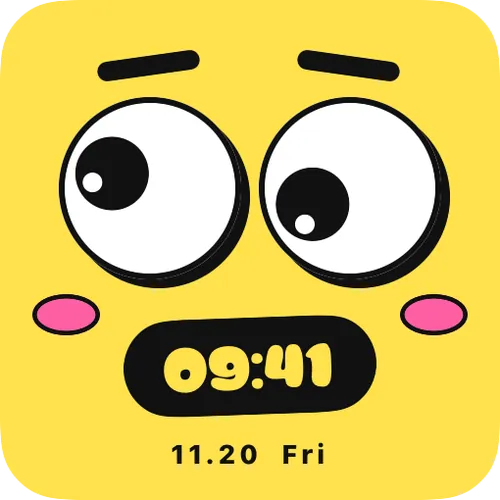
Face clock widget showing 09:41 and the date
A small face clock

Clock boards and world clocks

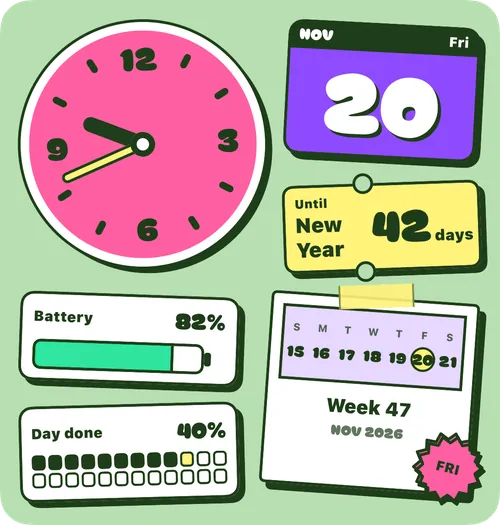
Large widgets can combine a clock, a calendar, battery and how much of the day is done on a single board, along with the week number and a countdown to New Year — your whole day in one glance. Working across time zones? The world clock lines up several cities side by side.

The time & date, weather and calendar categories come in matching styles, so the whole Home Screen feels like one set.

Large board widget with a clock, calendar, battery and day progress
One board: clock, calendar, battery, day progress

A photo clock with a depth effect

Pick a photo of a person or a pet and the Depth Clock places the time behind them, like a depth-effect Lock Screen wallpaper. On iOS 17 or later the subject is detected automatically; on earlier versions the time sits on top of the photo. There’s more in photo widgets.

Depth photo clock: the person in the photo stands in front of 09:41
The time tucks behind the subject

Add it — or make it transparent

Save the clock in the app, touch and hold your Home Screen, tap Edit → Add Widget (or + on iOS 17 and earlier), search for Widget Park and add the same size. Then touch and hold it, tap Edit Widget and pick the clock you saved.

Want just the numbers floating on your wallpaper? If the style has a Background option, switch it to Transparent — the transparent widget guide shows how.

Yellow Home Screen with clock, habit and calendar widgets
Clocks matched with habits and a calendar

Questions,
answered.

Something else on your mind? Email us at [email protected] — a real person reads every message.

Widget ParkHow do I add a clock widget to my iPhone Home Screen?

Save a clock in Widget Park, touch and hold your Home Screen, tap Edit → Add Widget, search for Widget Park and add the same size, then use Edit Widget to choose the clock.

Widget ParkIs there an analog clock widget for iPhone?

Yes. Widget Park has analog and digital faces in many styles, with colors and fonts you can change.

Widget ParkHow does the photo clock put the time behind me?

Choose the Depth Clock style and add a photo with a person or pet in it. On iOS 17 or later the subject is detected and the time goes behind it.

Widget ParkCan the clock show 12-hour or 24-hour time?

Yes. All widgets follow the app’s 12- or 24-hour setting.

Widget ParkIs there a world clock widget?

Yes. The world clock shows several cities side by side.

Widget ParkCan I change a clock widget’s colors and font?

Yes. The editor lets you change colors, fonts and the background, or apply a full color palette so the clock matches your wallpaper and your other widgets.