Widget Park · Photo widgets

A photo widget for your iPhone Home Screen

Want your pet, your last trip or your favorite person on your Home Screen? A Widget Park photo widget lets you pick a few photos, crop them to fit, add frames and stickers, and rotate through them — and On This Day brings back what you shot on this date in past years.

Download on theApp Store Free download
Widget Park photo widgets: On This Day memories and a depth clock
Polaroid-style photo countdown widget: 18 days until Lulu’s birthday

Pick photos, fit them, rotate a few

Choose from your library or take a new photo right from the picker. Crop and drag each one to fit, with a live widget preview in the editor. Picked several? Long-press to reorder them, and the widget shows them in turn — set the interval or shuffle them.

Only gave access to some photos? That’s fine; you can add more anytime. Small widgets suit a single favorite shot, while medium and large ones have room for a wider photo, a caption or a little collage.
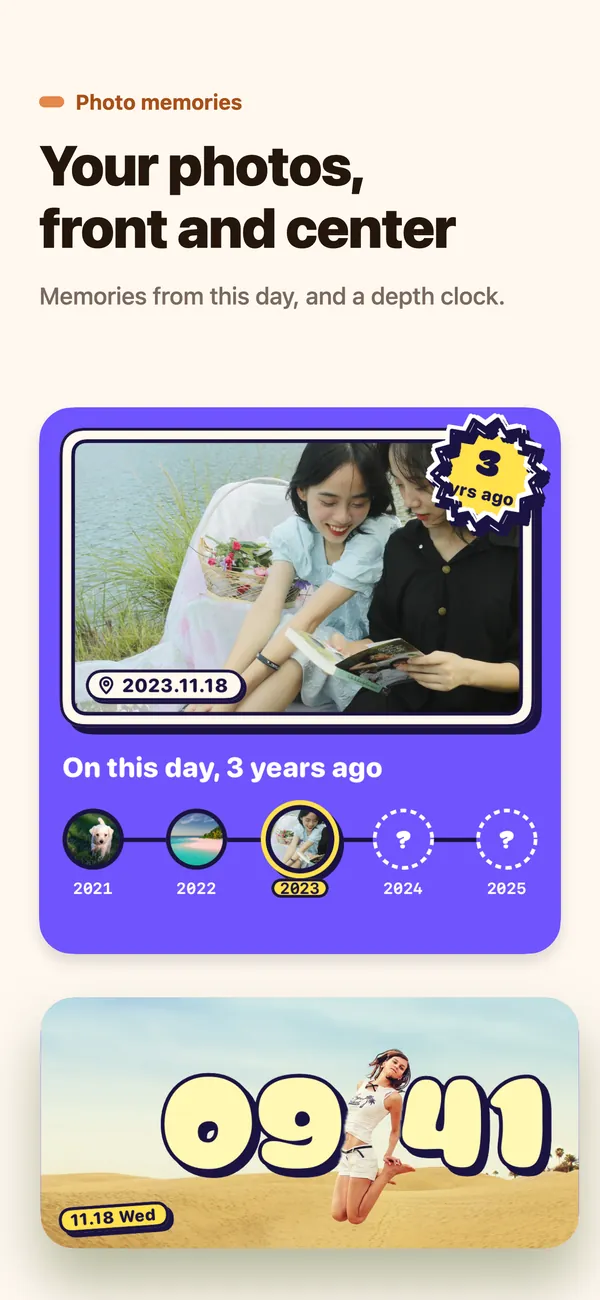

Photo widget: On this day, 3 years ago
On This Day: photos from this date in past years

Frames, stickers and a caption

Polaroids, photo calendars, sticker styles — photo widgets come in small, medium and large with plenty of looks, colors you can change, and a caption line to stick next to the photo. Great for memories, pets, travel and couple photos.

Want a photo and a date together? The countdown category has photo styles too, like a polaroid with “18 days” to go beside it.

Polaroid photo countdown widget: Lulu’s birthday in 18 days, repeats yearly
A photo and a countdown in one widget

Depth clock: the time tucks behind your subject

The Depth Clock finds the subject of your photo — a person, a pet, an object — and puts the time behind it, like the depth effect on the Lock Screen. On iOS 17 or later the subject is lifted automatically; on earlier versions, or if no subject is found, the time sits on top of the photo.

See more faces in clock widgets, or blend a photo widget into your wallpaper with the transparent widget guide.

Depth photo clock: the girl in the photo stands in front of 09:41
Time behind, subject in front

Put it on your Home Screen

Save your photo widget in the app, then touch and hold your Home Screen, tap Edit → Add Widget (or + on iOS 17 and earlier), search for Widget Park and add the same size you designed. Made more than one? Touch and hold the widget, tap Edit Widget and choose which one it shows.

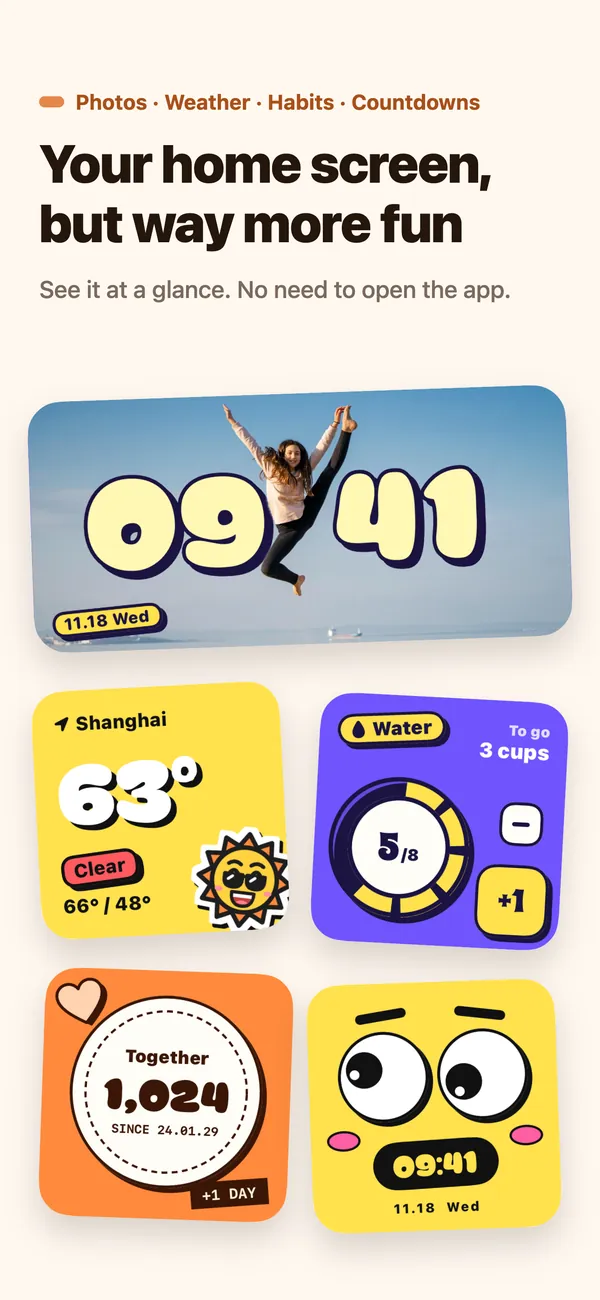
A Widget Park Home Screen with a photo clock, weather, habit and anniversary widgets
Photo widgets alongside the rest of your setup

Questions,
answered.

Something else on your mind? Email us at [email protected] — a real person reads every message.

Widget ParkHow do I put a photo widget on my iPhone?

Pick a photo style in Widget Park, choose and crop your photos and save. Then touch and hold your Home Screen, tap Edit → Add Widget, search for Widget Park and add the same size.

Widget ParkCan one photo widget show several pictures?

Yes. Pick several, drag to reorder, and the widget shows them in turn. You can set the interval or shuffle them.

Widget ParkWhat does On This Day show?

Photos you took on this date in earlier years, such as “On this day, 3 years ago”, refreshed each day.

Widget ParkWhat do I need for the depth clock?

On iOS 17 or later the subject is lifted so the time sits behind it. On earlier versions the time appears on top of the photo.

Widget ParkIs Widget Park free?

Widget Park is a free download for iPhone, and it also works on iPad and iPhone Duo.

Widget ParkCan a photo widget have a transparent look?

Yes. Photo widgets can use a transparent background so the picture looks stuck right onto your wallpaper — see the transparent widget guide for setup.