Widget Park · Transparent widgets

How to make transparent widgets on iPhone

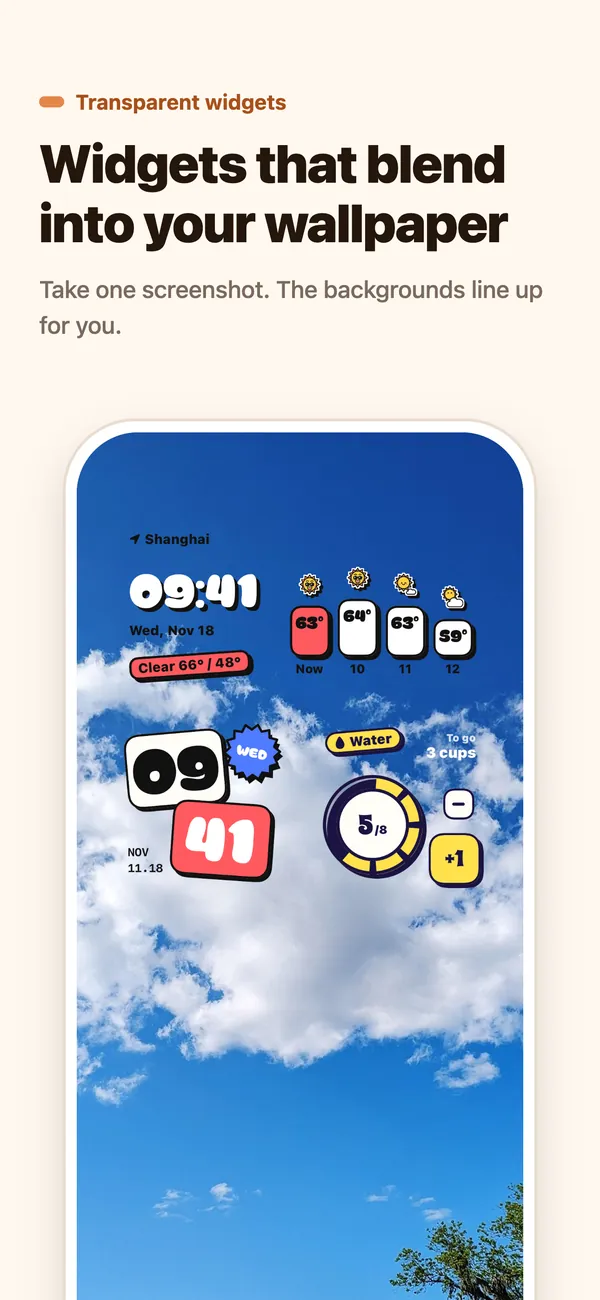
A transparent widget has a background cut from your own wallpaper, so the time, weather or photo looks printed right onto your Home Screen. In Widget Park you set it up once: screenshot an empty Home Screen page, upload it, and tell the widget which row and column it sits in.

Download on theApp Store Free download
Widget Park transparent widgets: clock and weather blending into a mountain wallpaper
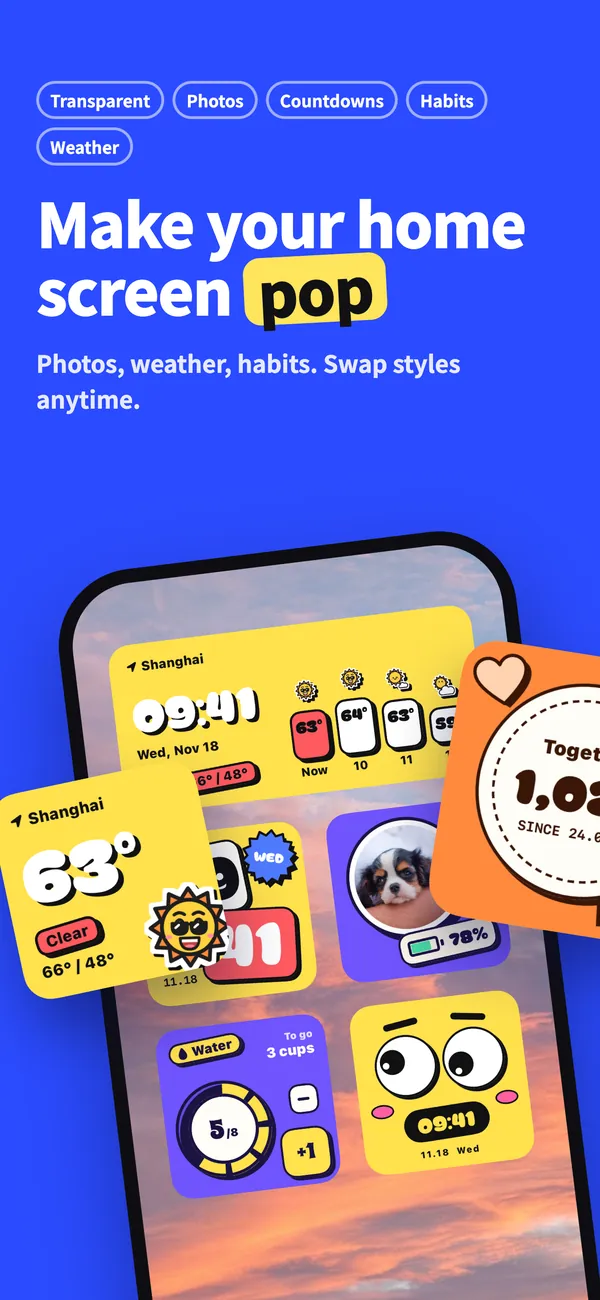
Widget Park: transparent, photo, countdown, habit and weather widgets

What a transparent widget is — and why it needs a screenshot

iOS doesn’t let widgets read your wallpaper, so “transparent” really means lined up. Widget Park knows the icon grid of your iPhone model and cuts the matching piece out of your screenshot to use as the widget background. When it lines up, the widget’s edges disappear and only the time or weather floats on your wallpaper.

Because the cut follows each model’s layout, the screenshot has to come from the same device. If your device’s layout isn’t supported yet, the app tells you right away instead of giving you a misaligned background.
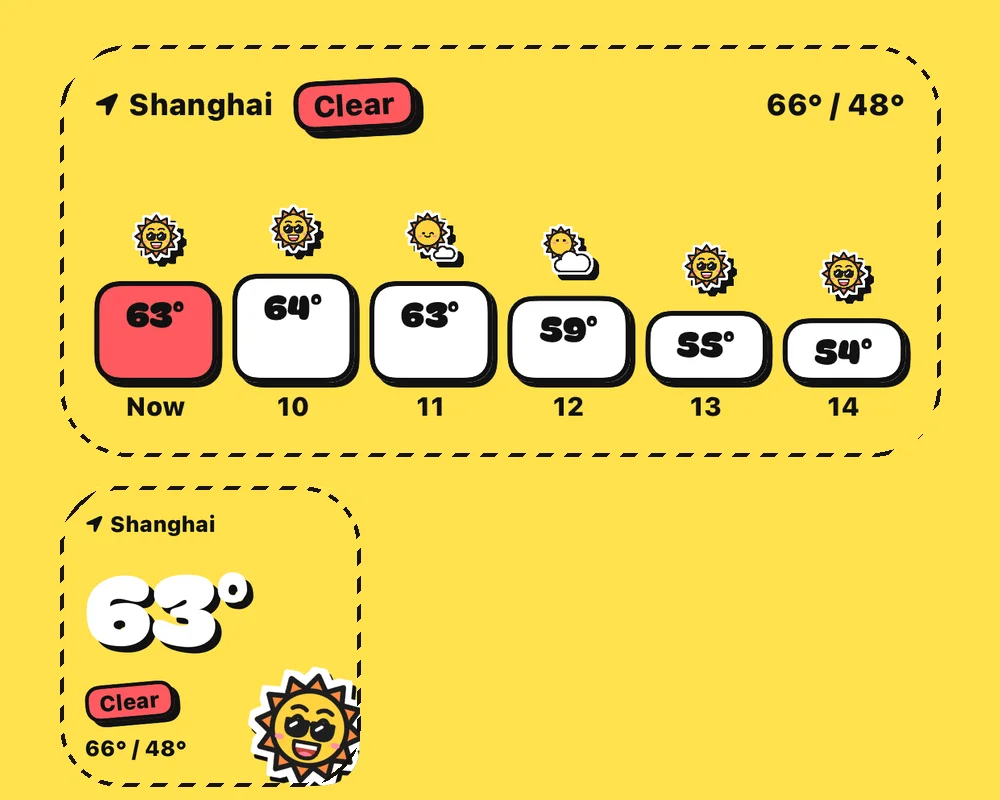
Transparent weather widgets: dashed lines mark the edges, the background matches the wallpaper
Dashed lines show the widget edges — the background is your wallpaper

How to set up transparent widgets, step by step

The Transparent Background page in the app walks you through it with pictures. Here’s the whole flow:

  1. Capture an empty Home Screen pageSwipe to the last page with no icons, then press the side button and volume up together.
  2. Upload it in Widget ParkOpen Transparent Background (in Settings, or from the widget editor), tap Light and pick that screenshot from Photos.
  3. Add a Dark Mode screenshot (optional)Switch iOS to Dark Mode, repeat the first two steps and upload to Dark. Without it, Dark Mode uses the light screenshot.
  4. Turn on Transparent in the editorPick a widget, turn on Transparent under Background, tap the row and column where it will sit on your Home Screen, and save.
  5. Add the widget to that exact spotTouch and hold the Home Screen, tap Edit → Add Widget (+ on iOS 17 and earlier), search for Widget Park, add the same size in the spot you chose, then touch and hold it, tap Edit Widget and pick the widget you saved.
Done: transparent clock and weather widgets floating on the wallpaper
One screenshot and the backgrounds line up

Not lining up? Check these

  • New wallpaper? Take a new screenshot — the old one still has the old wallpaper.
  • Display Zoom changes the Home Screen layout, so transparent backgrounds need it off: Settings › Display & Brightness › Display Zoom › Default.
  • Wrong spot: the row and column you tap in the editor must match where the widget really sits.
  • Dark Mode: without a dark screenshot, Dark Mode reuses the light one and colors may not match.
  • iPhone Duo: the cover screen and the inner screen in landscape or portrait each have their own layout, so the background lines up only on the screen and orientation you captured.
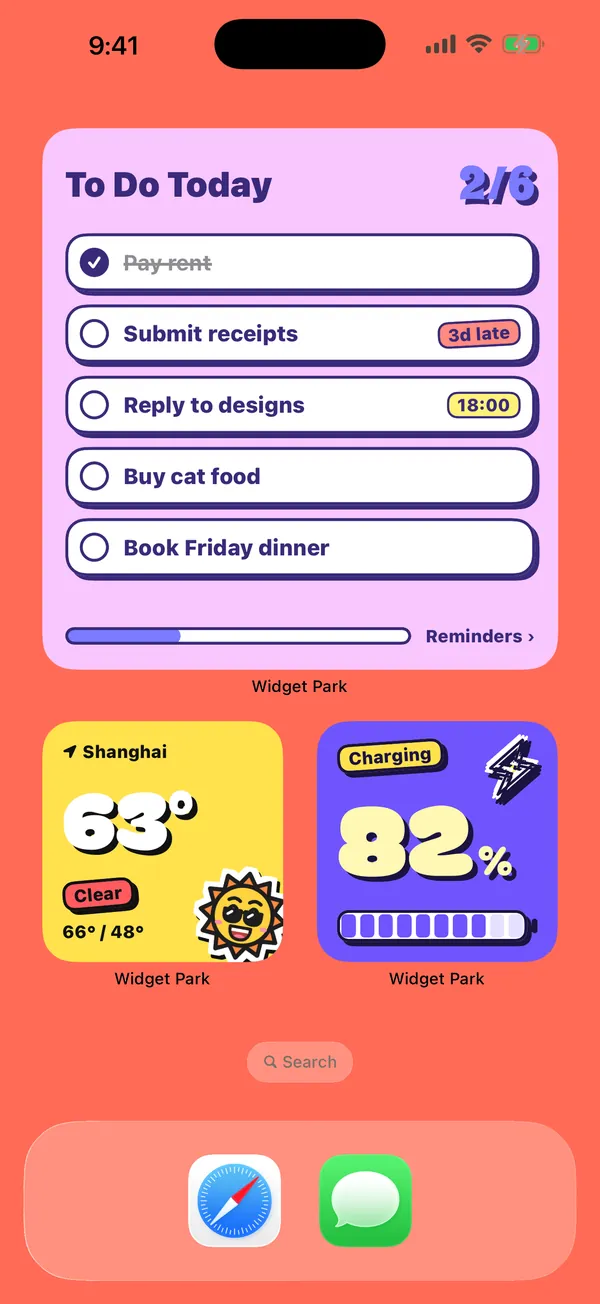
A coral Home Screen styled with Widget Park to-do, weather and battery widgets
Once it lines up, keep adding widgets

Questions,
answered.

Something else on your mind? Email us at [email protected] — a real person reads every message.

Widget ParkHow do I make my iPhone widgets transparent?

Upload a screenshot of an empty Home Screen page to Widget Park, turn on Transparent under Background in the widget editor and tap the row and column it will sit in, then add the widget to that same spot.

Widget ParkWhy doesn’t my transparent widget line up?

Usually the wallpaper changed since the screenshot, Display Zoom is on, the row and column don’t match where the widget sits, or the screenshot isn’t from this device’s Home Screen.

Widget ParkDo transparent widgets work in Dark Mode?

Yes. Take a second screenshot in Dark Mode and upload it to Dark, and the background follows when your iPhone switches appearance.

Widget ParkDo I need to redo it after changing my wallpaper?

Upload a fresh screenshot of an empty Home Screen page. Your widgets and their positions stay as they are.

Widget ParkCan I use transparent widgets on iPhone Duo?

Yes. The cover screen and the inner screen in landscape or portrait each use their own screenshot, and the background lines up on the screen and orientation you captured.

Widget Park app icon

Give your home screen
a fresh look today.

Free download for iPhone.

Download on theApp Store